
Collaborations in myFolio are designed to increase collaboration while still limiting visibility. Collaborators may be granted the authority to publish any of the Note Types. They can also view an employee's Profile and Goals. However, they cannot see any Notes between the employee and their supervisors. They also cannot see the employee’s Surveys, Resources, Projects, or Teaching Assignments.
myFolio allows you to assign your direct reports or those you have been assigned as a Group Viewer the authority to collaborate with other colleagues. This authority will give your employees access to Publish any of the Note Types that you have selected. They will be able to view and comment on only those Notes that they have published. To assign Collaboration, follow the steps below:
Single Collaboration Set-up
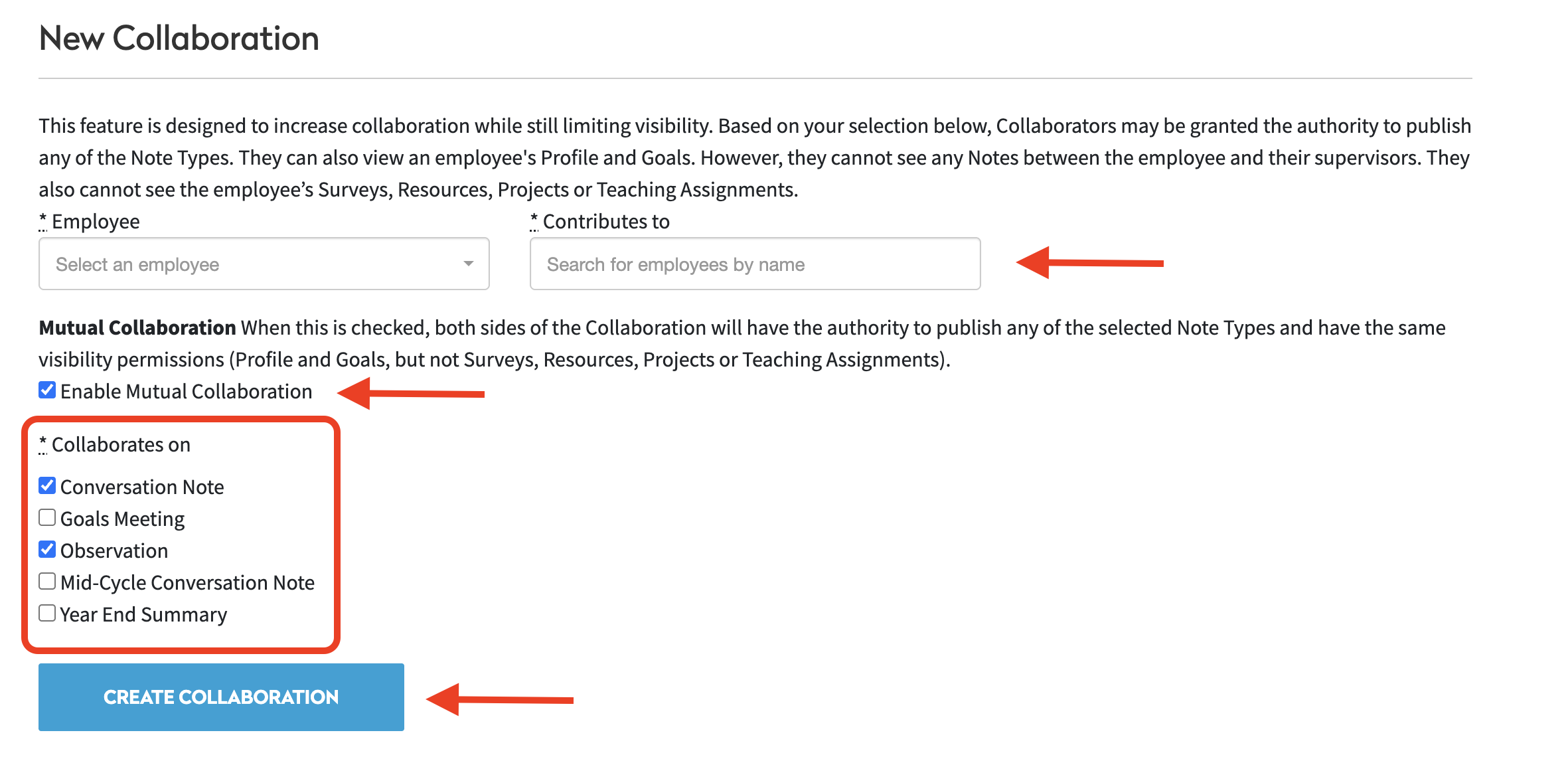
- From the Manage Collaborations page, select the employee you would like to grant collaboration authority to (the "Collaborator") from the Employee drop-down list.

- Select the Colleague(s) from the "Contributes to" drop-down list with whom the Employee (Collaborator) will be collaborating.
- Grant Collaborators the authority to publish any of the Note types by checking the appropriate checkbox.
- Check the "Mutual Collaboration" checkbox to set up a two-way collaboration.
- Click the "Create Collaboration" button when complete.
Import Individual Collaborations Set-up
-
Click Import CSV at the top of the page.
-
Download the template for a list of all employees and their current collaborations. Employees with no collaborations appear with a blank "Contributes" row so you can add pairs; employees with collaborations will have the email address of their collaborator in the "Contributes" row.
-
Complete the template with new Collaborations. If you would like a Collaboration to be mutual, add a second row with the employee and contributor swapped.
-
Once you have completed the template, save and export as a CSV file. Click "Choose File" to upload back to myFolio.
-
Choose your import mode. Add and update only creates new collaborations and adds the selected note types onto pairs in the file. Existing Collaborations and Note types not listed are left unchanged. Match File makes Collaborations match the file exactly. Pairs in the file are create or updated; any outbound full Collaboration missing from the file is removed - including for employees you deleted from the spreadsheet. Clearing all Note type marks on a row also removes that pair.
-
Click Preview and review the changes. If everything looks as expected, click Finalize Import.
Everyone Collaborates with Everyone Set-up
In this type of Collaboration upload, everyone in the included list will be able to collaborate with every other person onthe Note types you select. Selected note types are added withoutclearing other Note types already on a Collaboratino, and existing Collaborations with people outside the list - including one-way collaborations set up individually - are left unchanged.
-
Click Import CSV at the top of the page.
-
Download the employee list template. Add or remove employee names and email addresses from the list. Once you are finished, save and export as a CSV file.
-
Click Choose File and upload the correct file.
-
Select the Note Type(s) you would like members of the group to be able to write.
-
Click Preview and review the changes. If everything looks as expected, click Finalize Import.