The myFolio platform streamlines the Professional Development process by allowing faculty and staff to track PD items. An approval workflow for these PD items can be configured by your school’s myFolio Admin.
How-to Submit a Professional Development Item for Approval
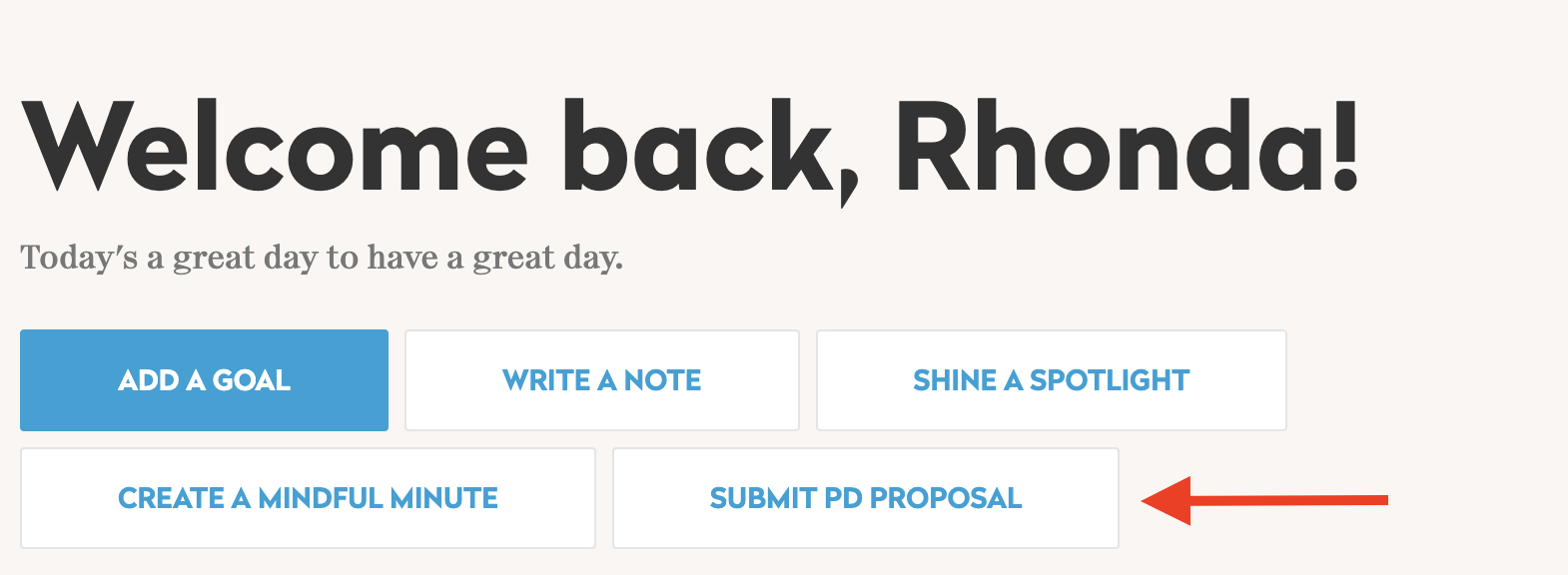
To submit a Professional Development form, click Submit PD Proposal on your myFolio Homepage. Read the instructions provided by your school, then complete the required fields.
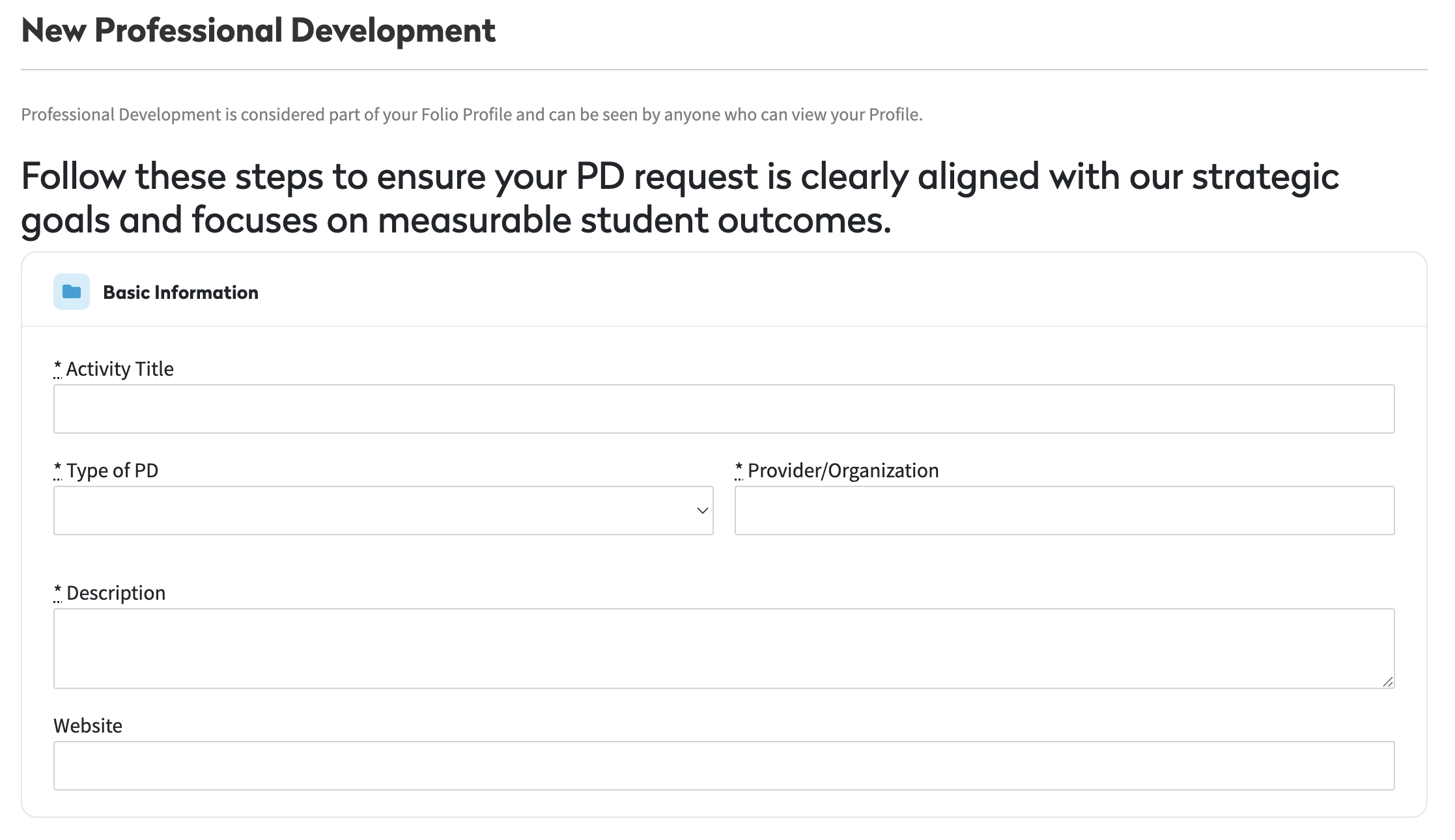
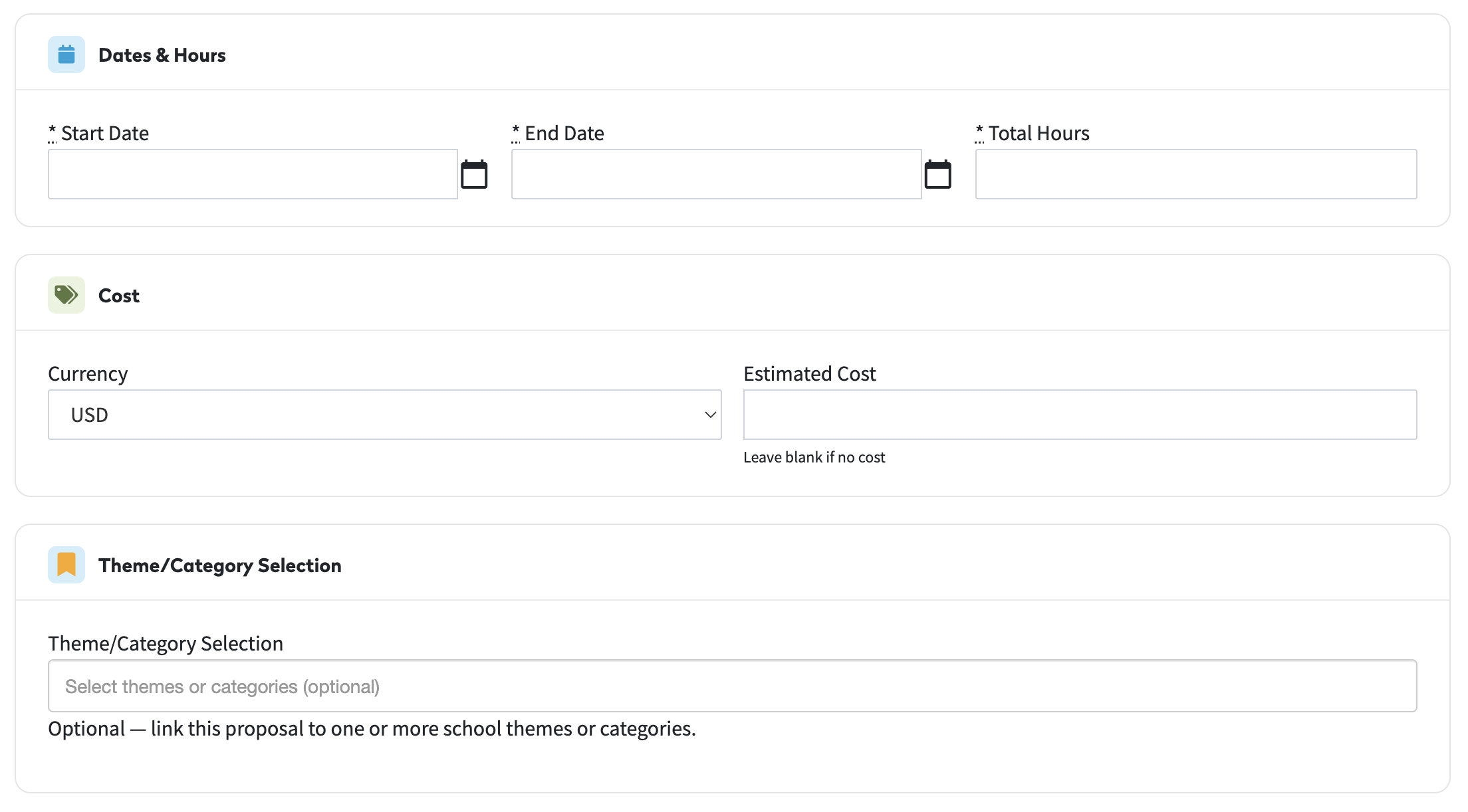
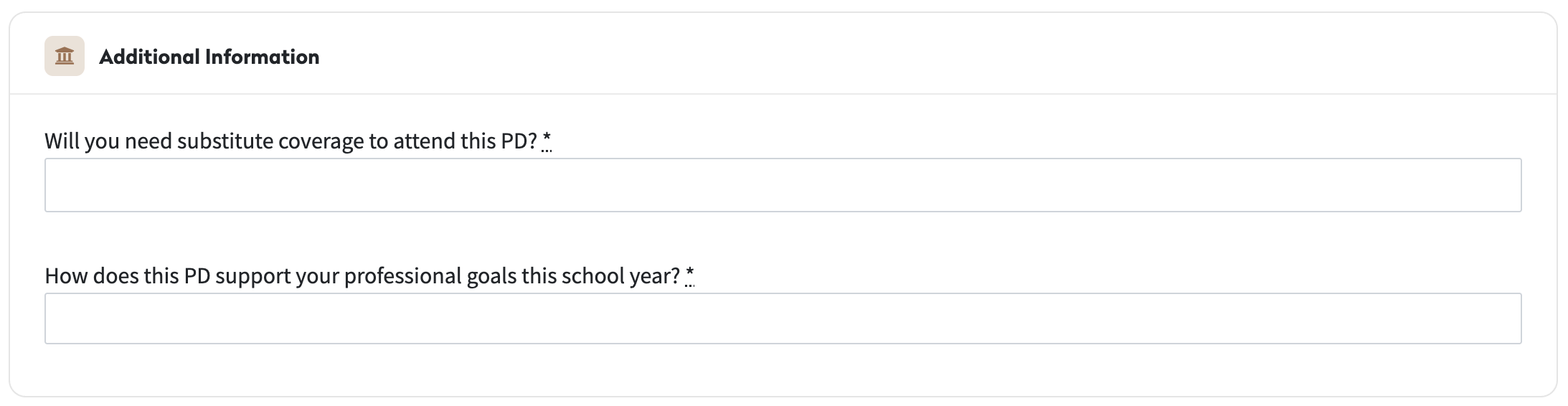
Your school may have customized fields for you to complete in the Additional Information section.
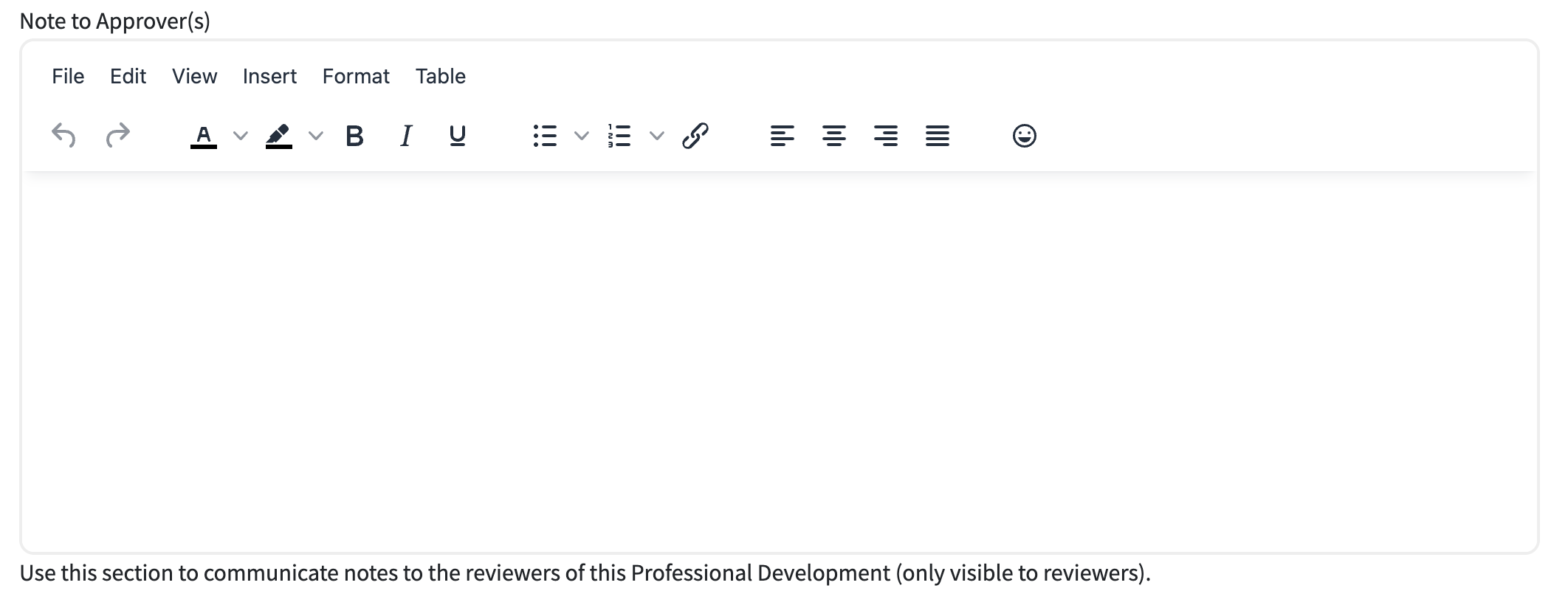
At the bottom you can provide any other notes to the approvers.
Once you are finished, you can submit for approval, which will send the PD submission to the designated approver or approvers at your school. If you select approval not requested, the PD form will save to your profile and will not be sent to any approvers. If you would like to work on the PD form at a later time, you can also save your PD form as a draft.

How-to Track your Professional Development Submission
Once the PD form is submitted for approval, you can track its progress from your myFolio profile. To access your profile, click your name in the top right corner, then Profile.
Select the Professional Development section, then click the title of your submission.
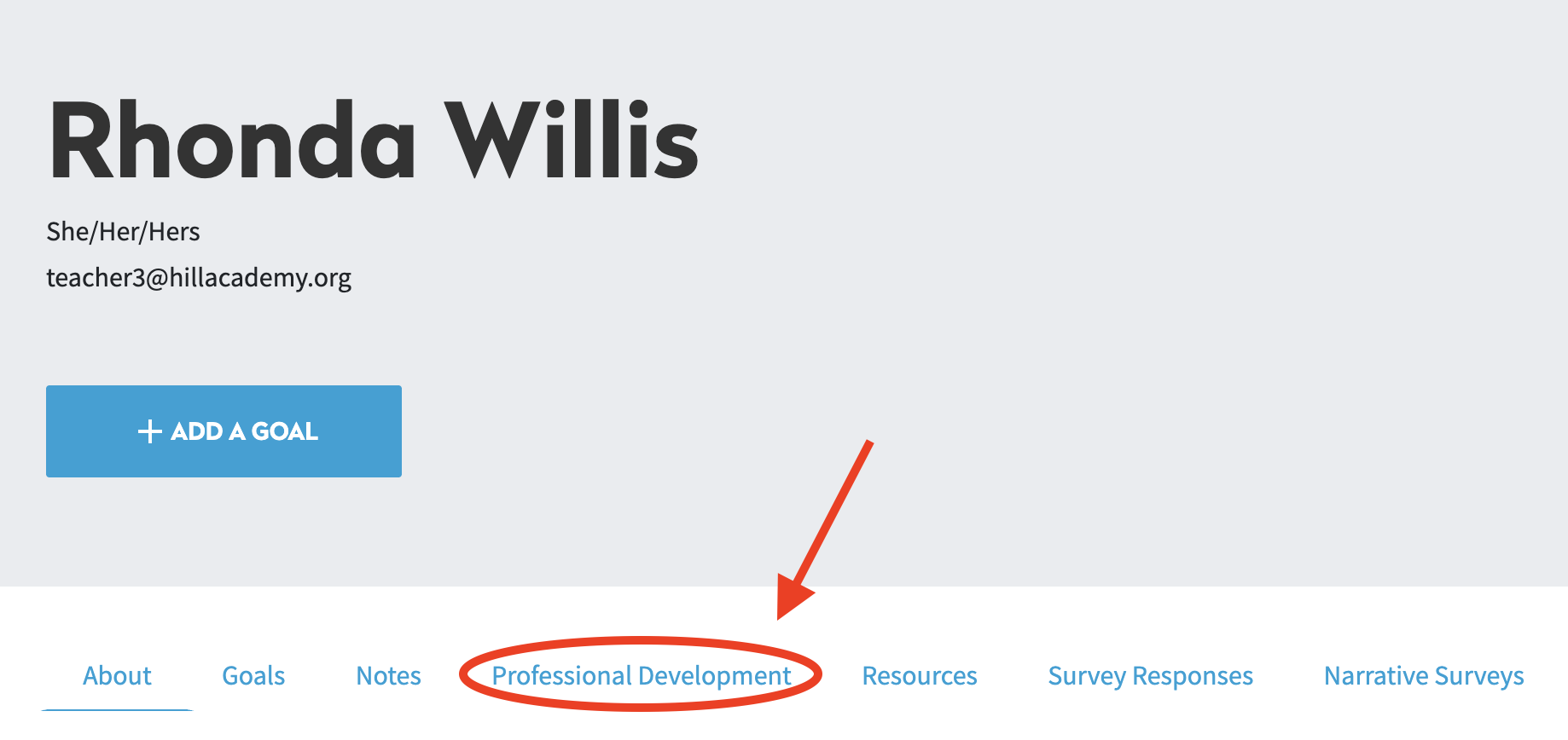
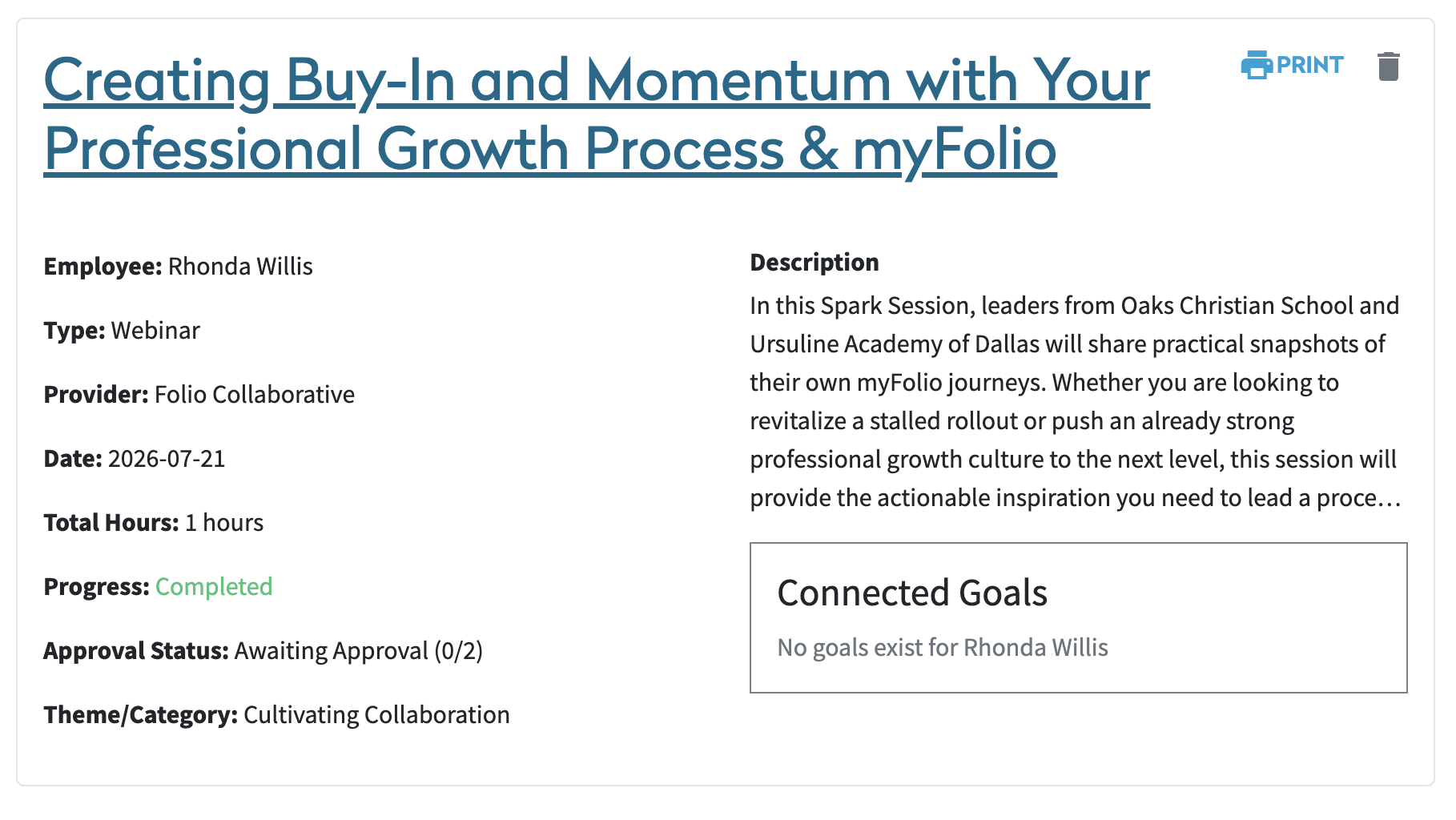
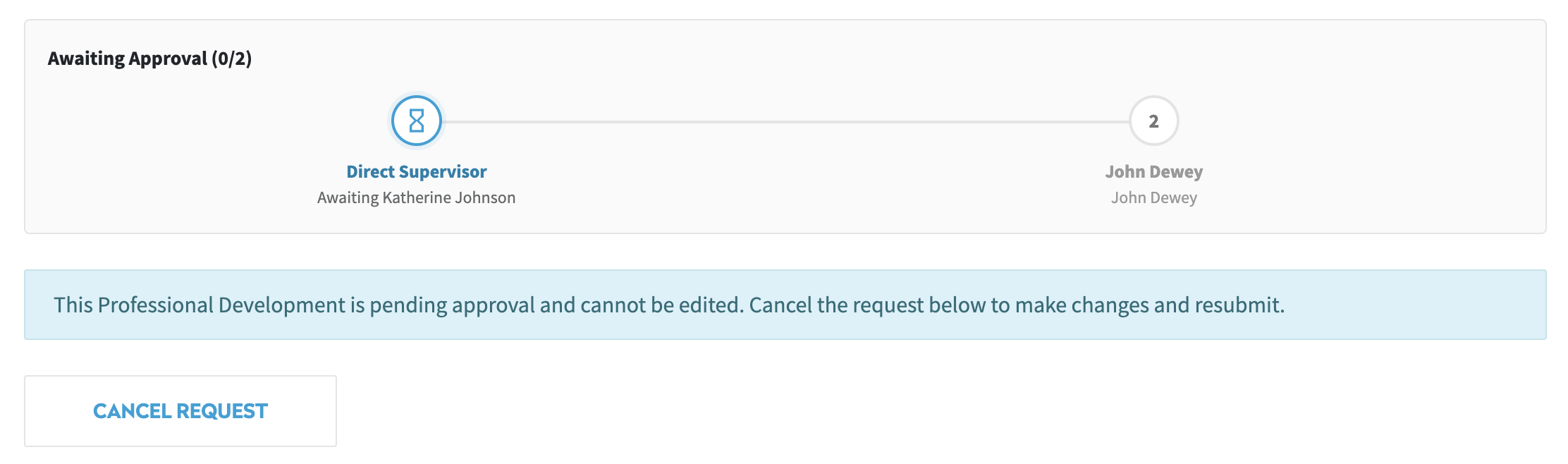
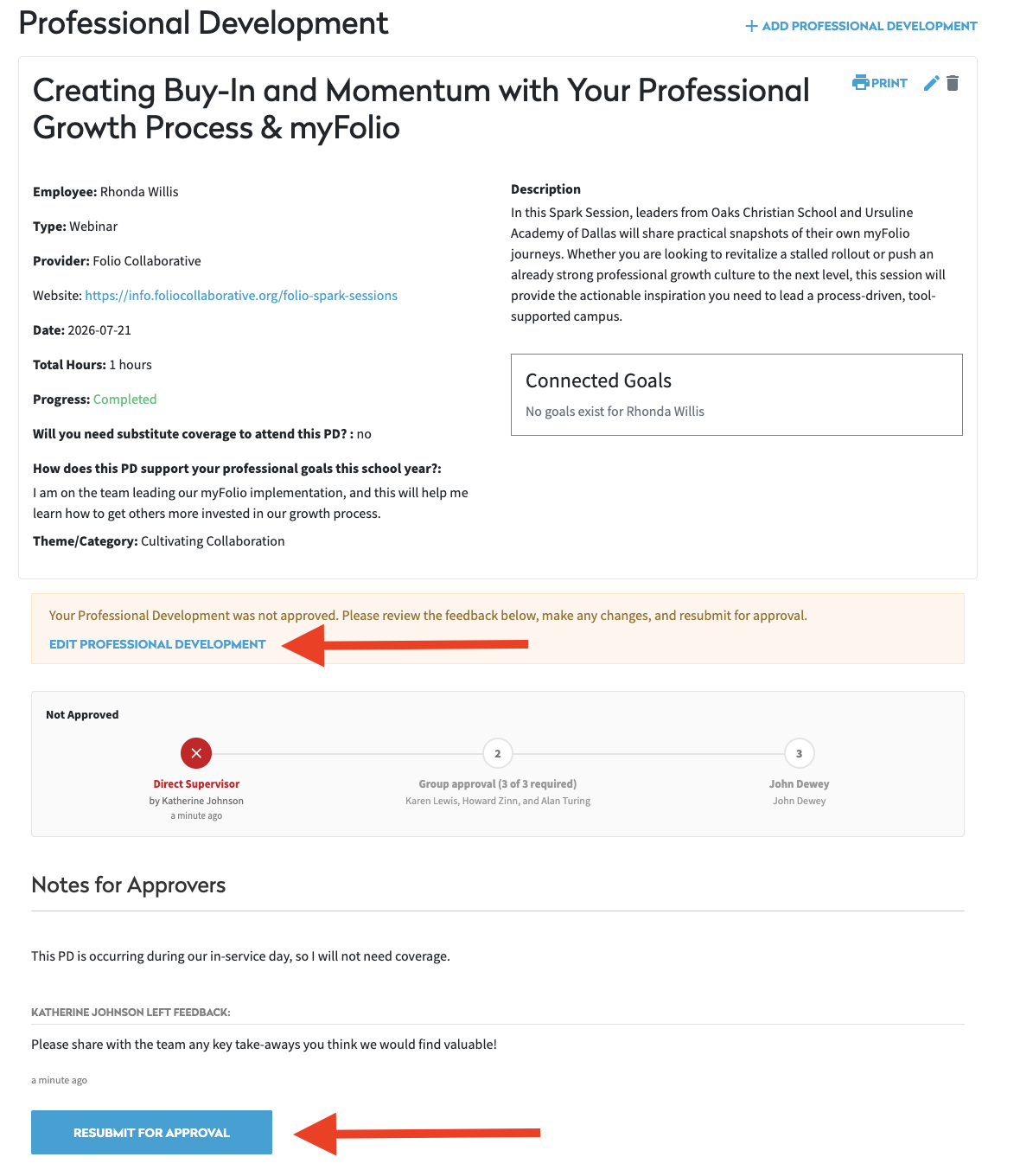
At the bottom of the submission you can see where it is in the approval process, along with any notes left by the approvers. If you would like to withdraw your submission, click "Cancel Request."
If your PD submission is rejected, you will receive an email notification as well as a bell notification within the myFolio platform. This will direct you back to the PD submission to make any necessary changes and allow for you to resubmit.
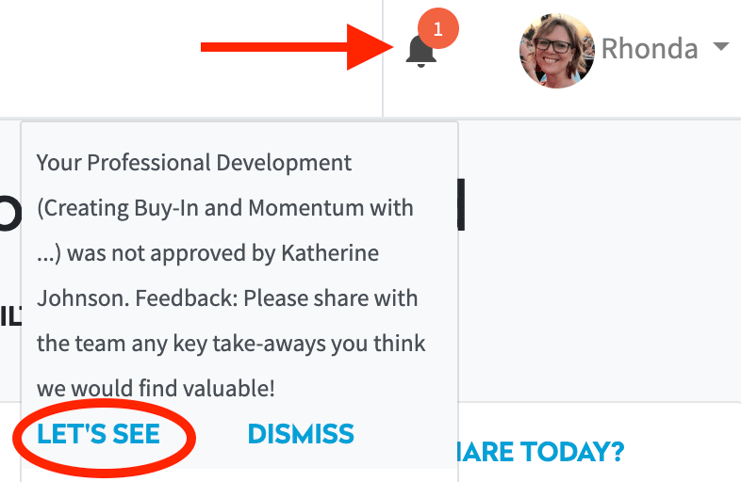
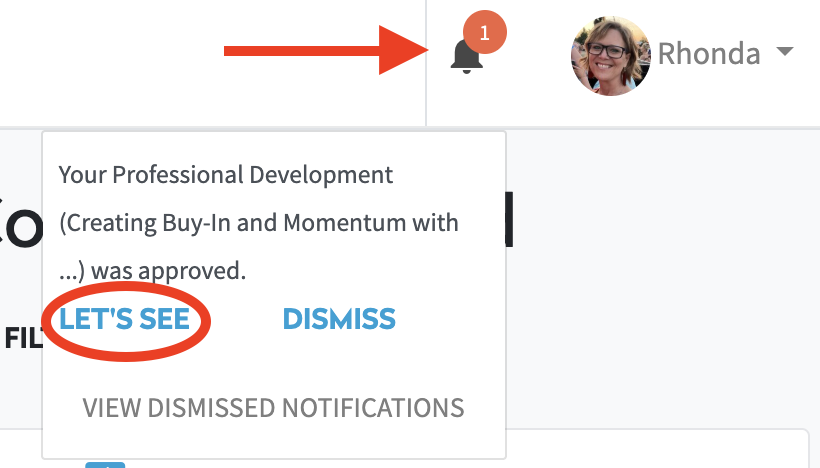
Once your PD submission is approved, you will receive an email notification as well as a bell notification within the myFolio platform.
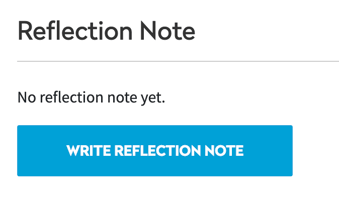
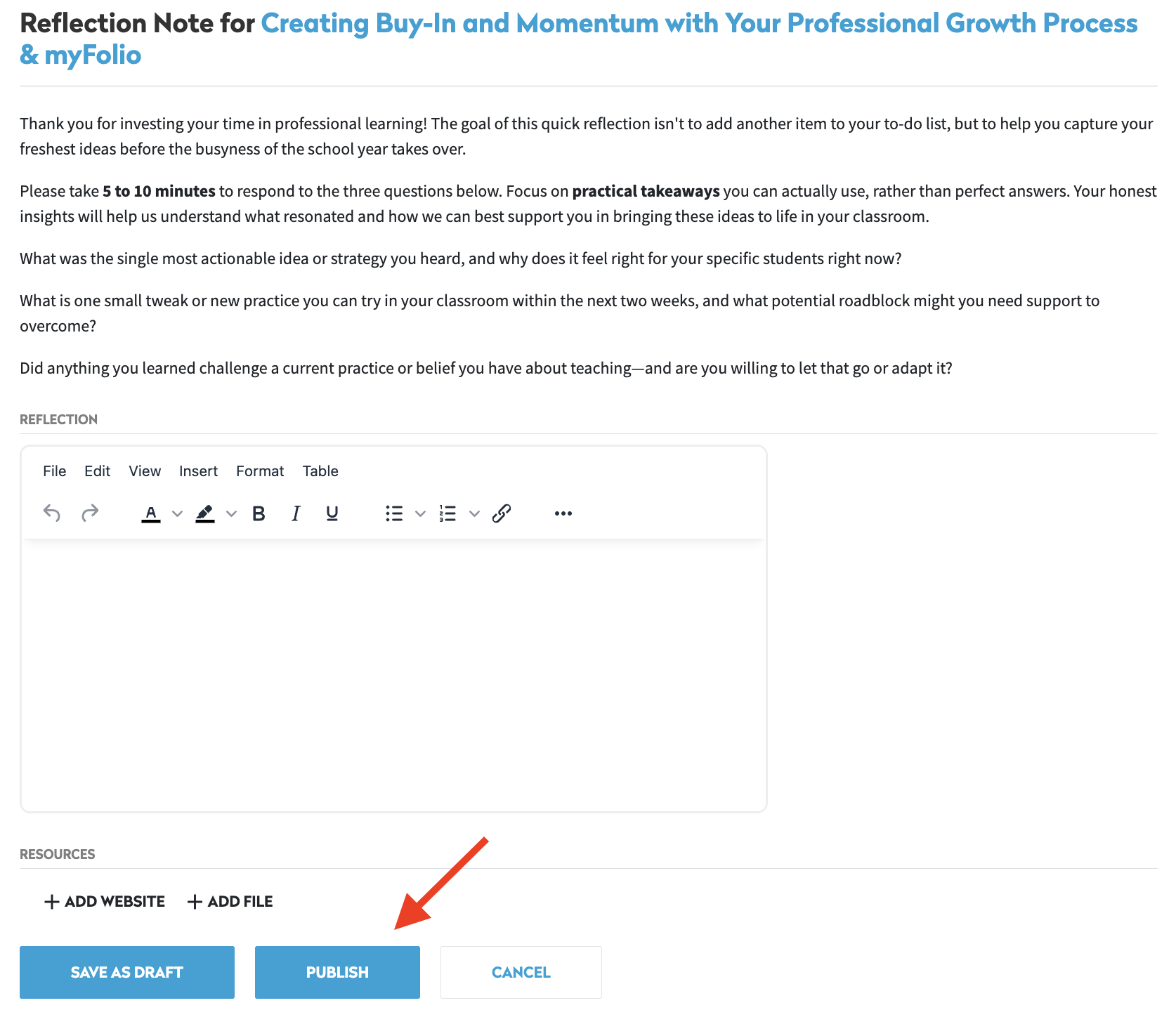
After you have completed the Professional Development, you will have the option to write a reflection note capturing your takeaways, notes, or other reflections from the PD.