
Goal setting is central to the Folio Growth Process. Users may set multiple Goals per Cycle with set check-ins and action items.
Jump to Section
How to Write a Goal
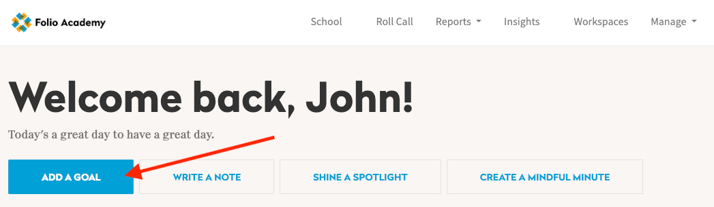
Create a new Goal by clicking "Add a Goal" from the Homepage or your Profile.
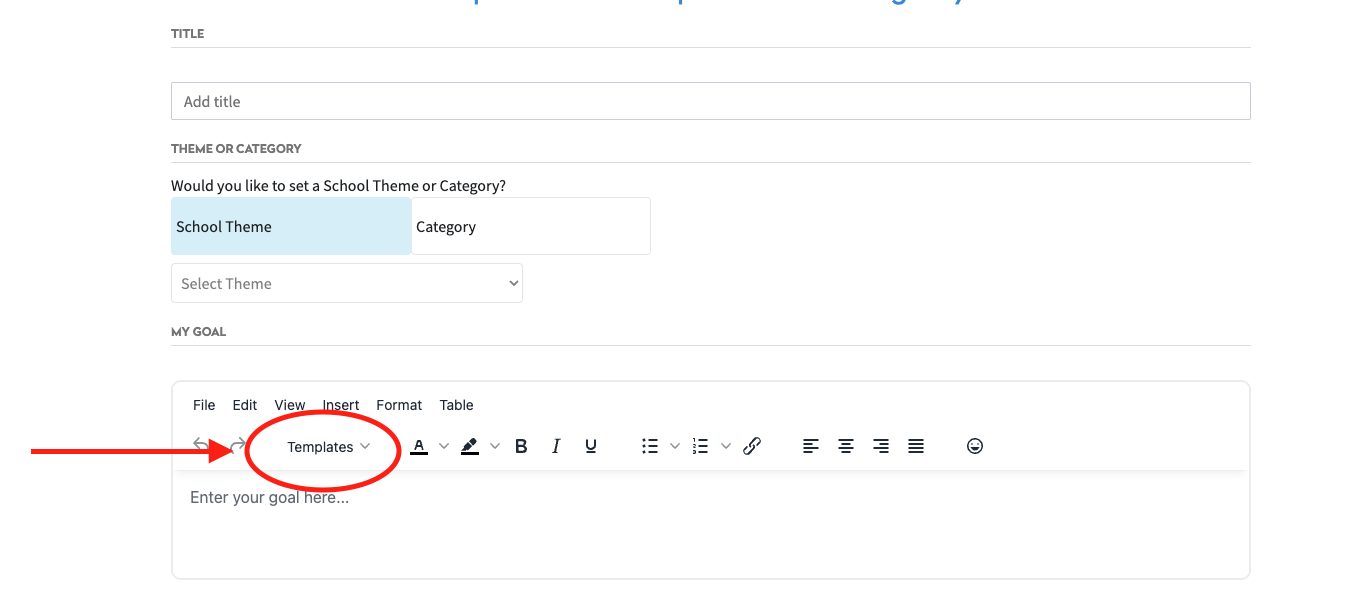
Title the Goal and select the theme you would like to align the Goal to. Then select the Template from the Template drop down menu.
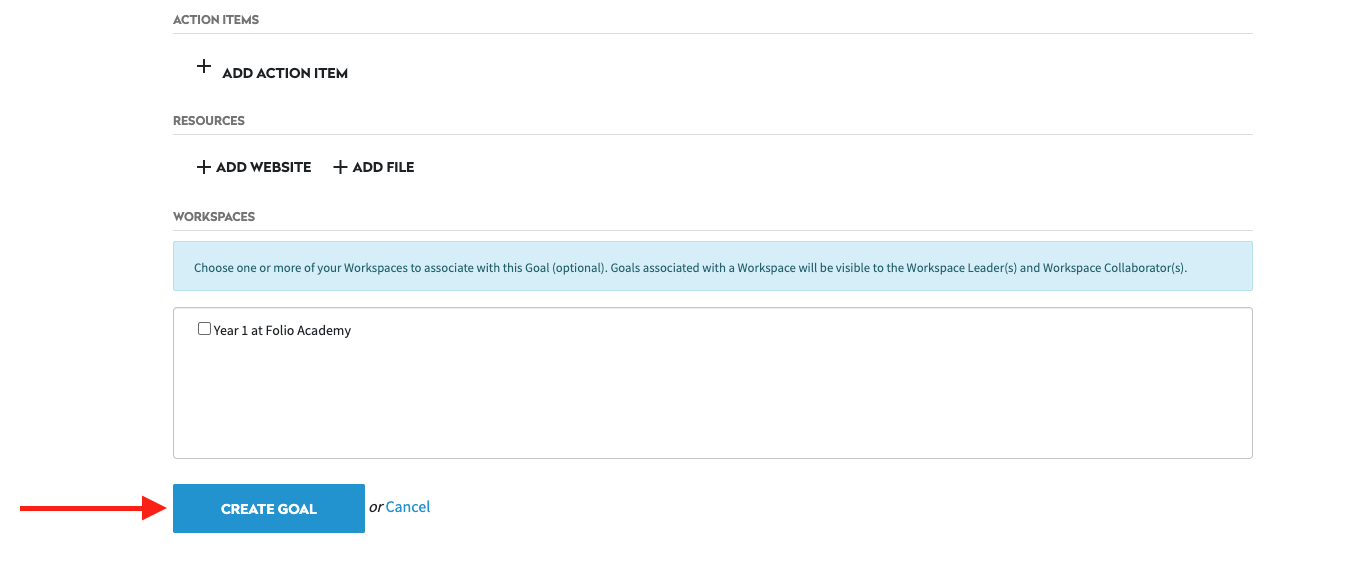
After completing the Goal Template and the remaining Goal fields, click "Create Goal."
How to Edit or Delete a Goal
The myFolio platform allows users to edit or delete their Goals two different ways:
- From the Homepage, in the "My Goals" section
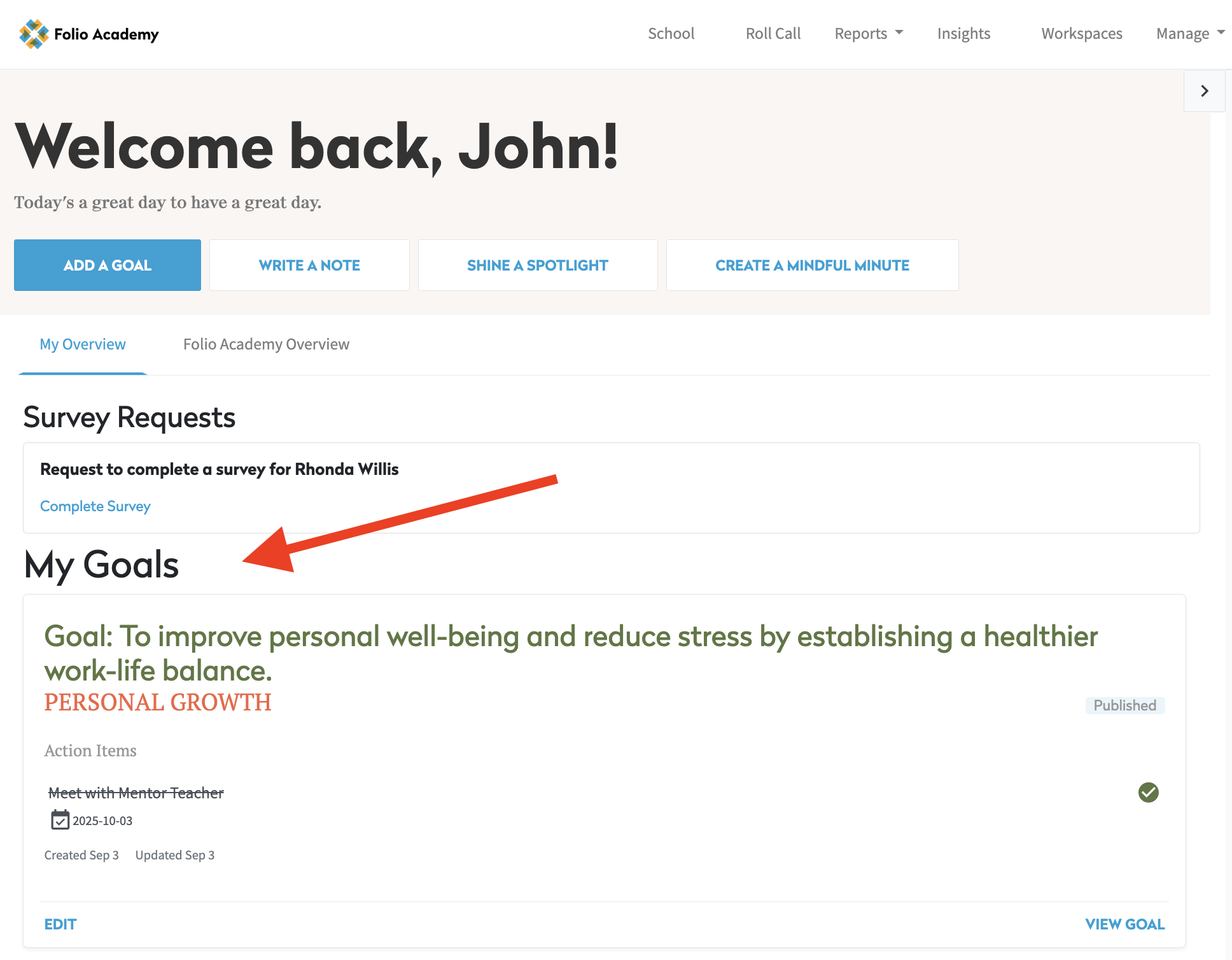
- From your Profile page, in the "Goals" section
-
- To edit a Goal you have created, click your name, then Goals to reach your Goals page

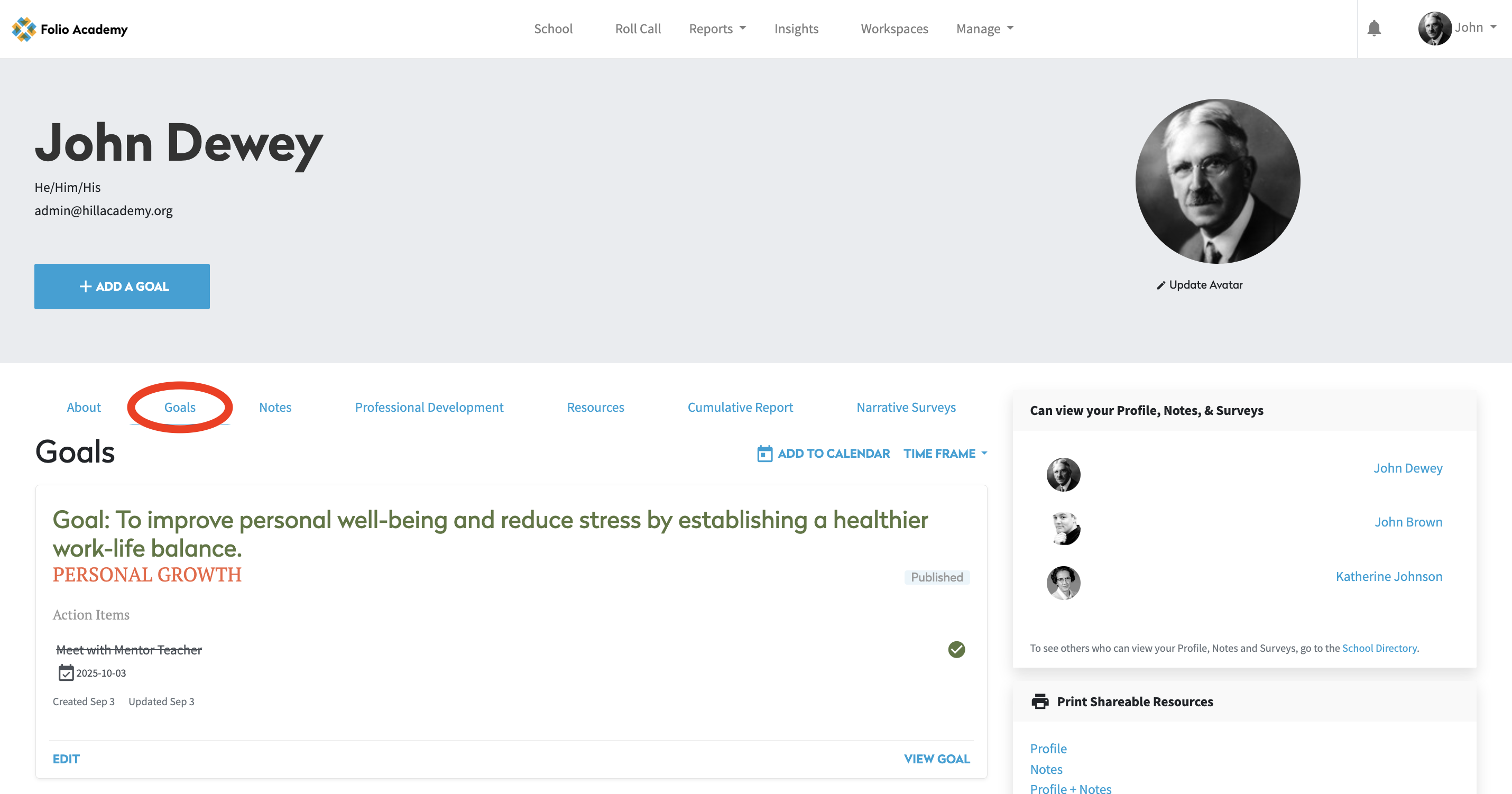
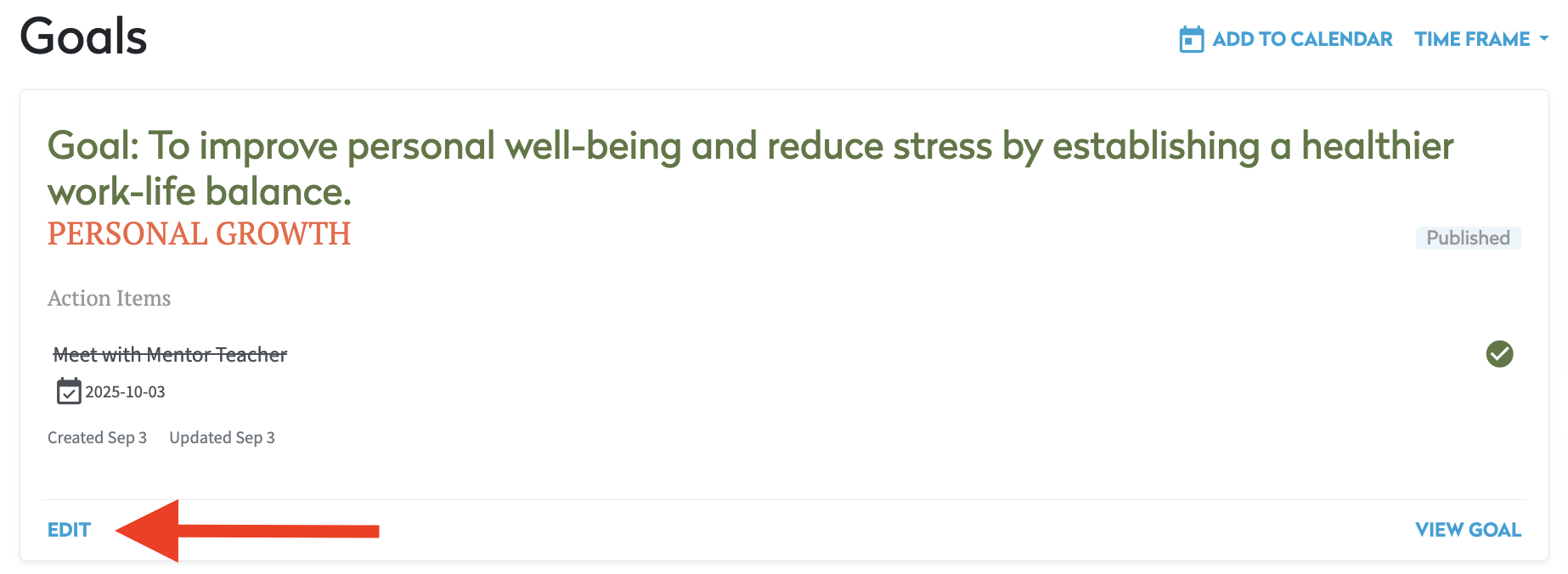
How-to Edit a Goal
To edit a Goal, click "Edit." This will take you to the editing page for that Goal. Make the desired changes and then click the "Update Goal" button to save your updated Goal.
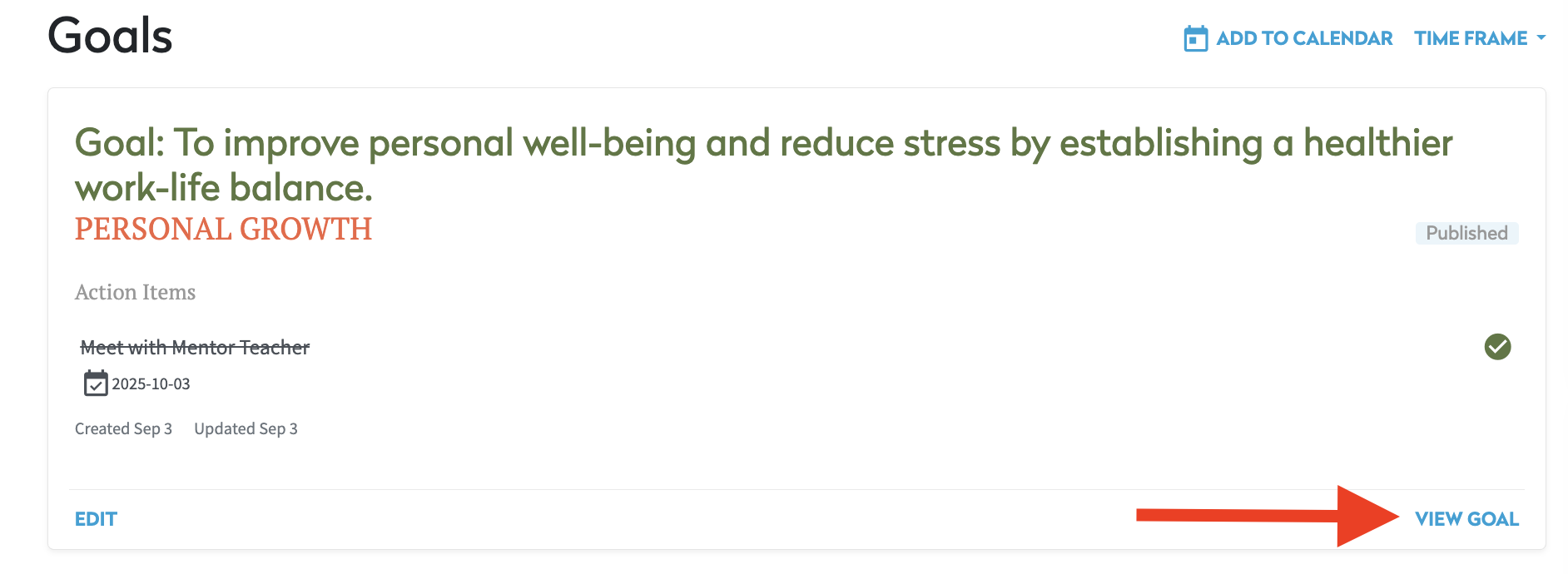
How-to Delete a Goal
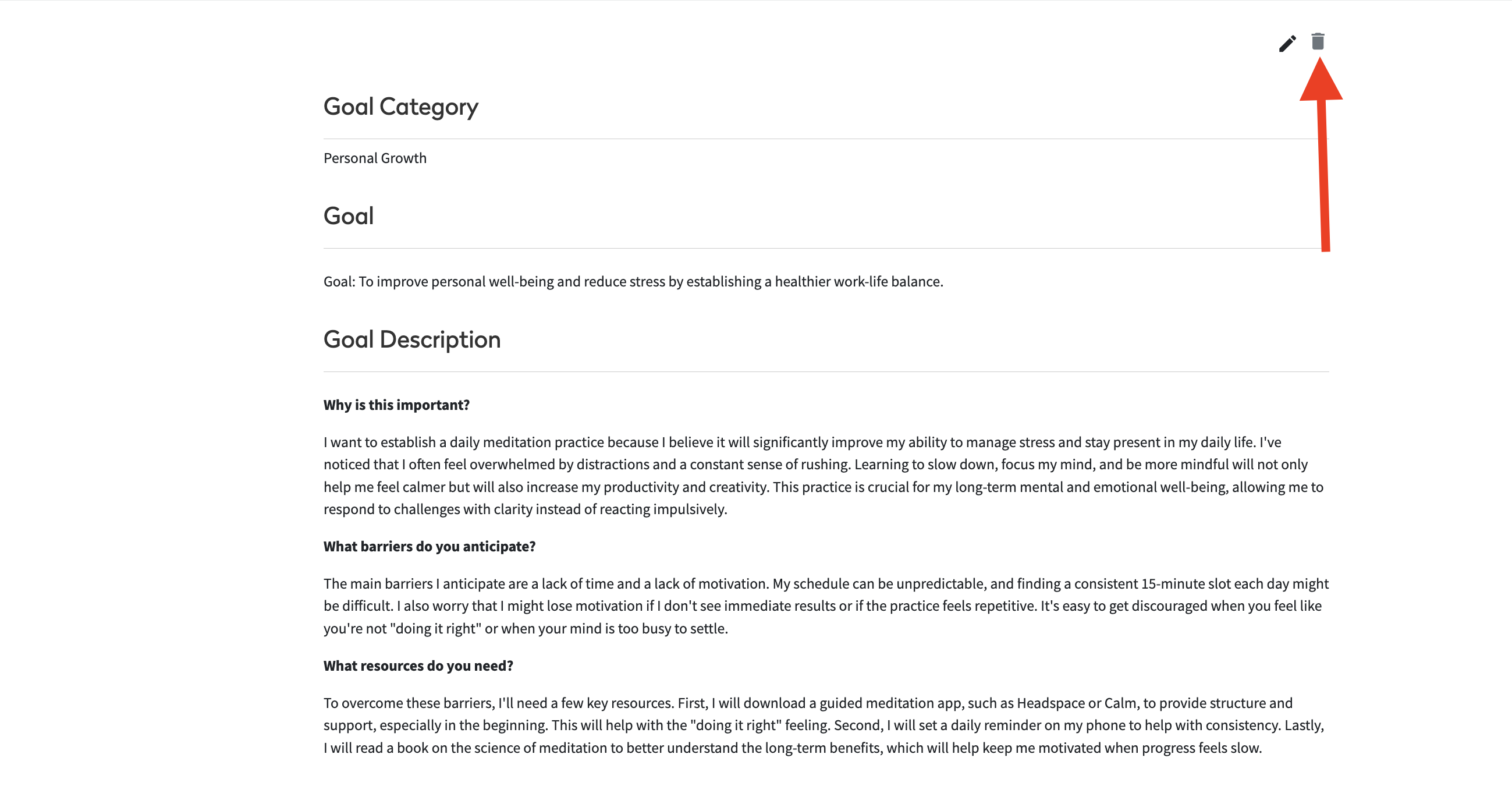
To delete a Goal you have created, click the "View Goal" link instead of "Edit". On the individual Goal page, click the trash can icon at the top of the page and then click "OK" on the "Are you sure?" pop-up prompt.
The Goal will be deleted.
Checking-In on a Goal
Users can check-in on a published goal and update their progress at any time through writing a comment or marking off completed action items.
There are two ways to access a published goal:
- From the Homepage, in the "My Goals" section
- From your Profile page, in the "Goals" section
-
- To edit a Goal you have created, click your name, then Goals to reach your Goals page
How-to Check-In
To check-in on a Goal, click "View Goal." In the Check-ins section, click the blue "Check-in Now" button. There are two ways to capture your check-in notes. The first is through writing a comment about the completion of an action item(s); the second is a general reflection note about the ongoing goal progress. Once you have written your notes, click "Complete" to save.
How-to Complete an Action Item
From the Goals tab of your Profile, click the circle next to the action item to mark it as complete.
How-to View Goals from a Previous Cycle
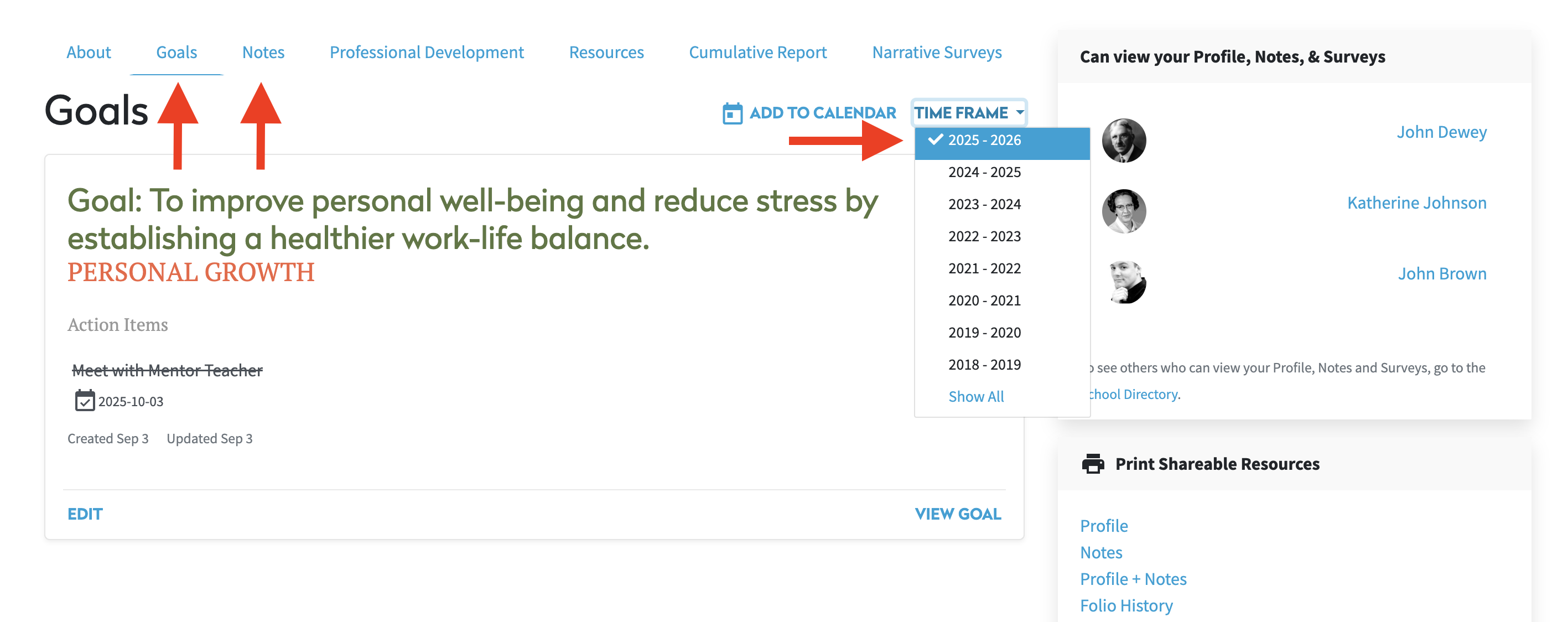
The myFolio platform defaults to display only the Goals and Notes for the current school cycle. However, you can view Goals and Notes from previous Cycles via the Profile page.
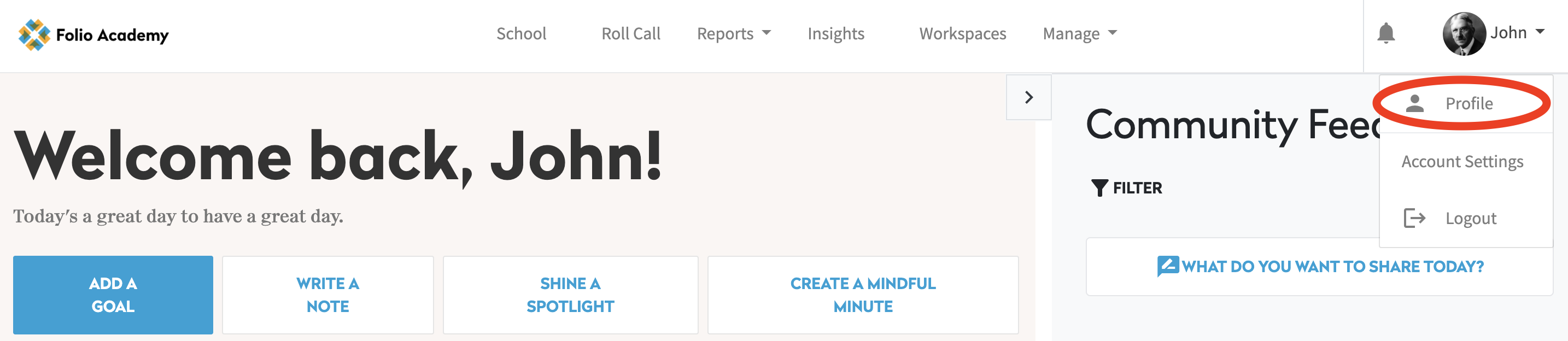
1. Click your name in the top right corner, then click "Profile."
2. Select Goals or Notes, then click the Timeframe dropdown on the righthand side and select the Timeframe you would like to view.
Who Can See my Goals?
In myFolio, the visibility for user Profiles, Notes and Goals is controlled by a well-defined sharing model. myFolio makes it clear to you who these people are in two ways.
First, there is a Visibility section near the right-hand side of the Profile page which lists who can view your Profile, Notes, Goals and/or Survey results.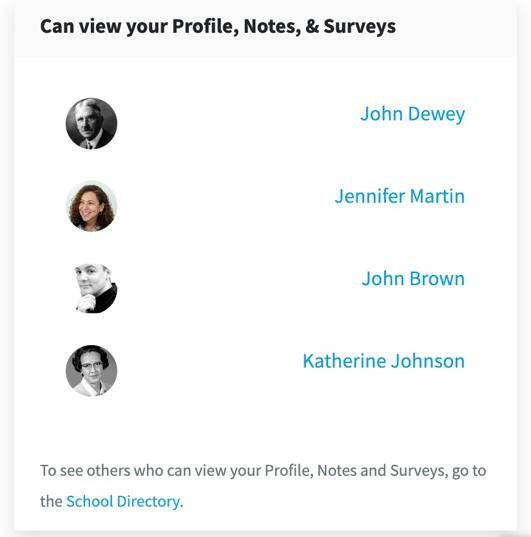
You can also see the full list by clicking “School” on the top navigation bar to reach the School Directory page.
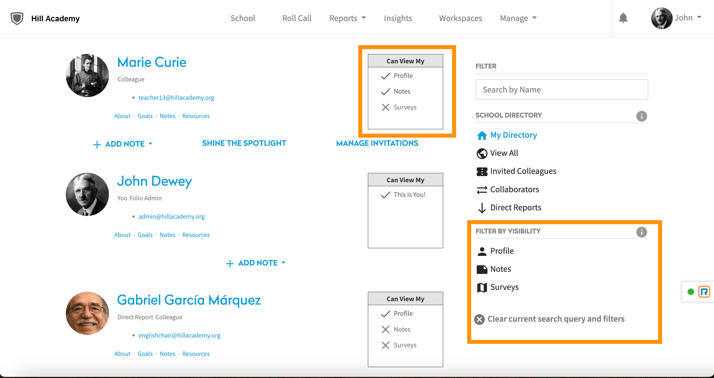
Each person in the School Directory has a “Can View My” section which shows if that user can see your Profile (including Goals), Notes, and/or Surveys (check mark) or not (X).
You can also use the Visibility Filters to see who can view specific items: Profile (including Goals), Notes or Surveys.
Visibility Summary
Here is a table detailing the visibility other myFolio users can have of your Profile, Notes, Goals and Surveys.
|
|
Profile |
Notes |
Goals |
Surveys |
|
Supervisor |
Yes |
All Notes |
All Goals |
All Surveys |
|
Supervisory Chain |
Yes |
All Notes |
All Goals |
All Surveys |
|
Group Viewer |
Yes |
All Notes |
All Goals |
All Surveys |
|
Workspace Leader |
Yes |
Workspace-related Notes |
All Goals |
No |
|
Workspace Collaborator |
Yes |
Workspace-related Notes |
All Goals |
No |
|
Collaborator |
Yes |
Only Notes they author |
All Goals |
No |
|
Invited Colleagues |
Yes |
None |
All Goals |
No |
Viewing Goals from the Goals Report
Supervisors can see the detail of their direct reports Goals on the Goals Report. To reach this page, click "Reports" on the top navigation bar and then "Goals."
How to filter the Goals Insights Page
You can filter the page by "All Employees" (meaning everyone you can see in your Roll Call) or just "Direct Reports." You can also filter for the employees of a particular Supervisor or for a specific employee.
Employees (and other users with no Roll Call page) can only see their own data.
_13663461426199.png?width=1167&height=799&name=Goals%20Insight%20Page%20()_13663461426199.png)
Goals Insights Page features:
- Results can be filtered by Group, Supervisor, Category, Time Frame (Cycle), etc.
- Filters have similar functionality to the Filters on the Roll Call page.
- Results can be sorted by the column headers.
- You can print the results.
- The results can be exprted to a CSV file.
- Clicking on the Goal Title will take you to that Goal.